Showing posts with label Blog Design. Show all posts

Wednesday, 7 October 2015

How to Add Font Awesome Social Icons in Blogger

It's near impossible to find a blog or site these days without at least one social media account to their name. Be it Twitter or Facebook, Instagram or Pinterest, or all of those for that matter, what's become increasingly clear is that social media helps increase your online presence.

Gone are the days when you used to rely on good old search engine results alone. These days, maybe you don't rank well in results for your keyword on Google or any other search engine, but you can launch a social media campaign that can hopefully give you the results that you want.

Essentially, your site and social media need to co-exist. One cannot live without the other, if you want another way of putting it. Social media is one of the best drivers of traffic on the internet, and if you want to increase your chances of being seen, then you have got to get an account on one or more platforms as long as it fits with your brand's identity.
font awesome social icons

Spreading Awareness of Your Social Media Presence

Once you've set up your social media accounts, you don't just leave it there to be discovered. Sure, you can make use of hashtags and communicate with industry leaders, but that's not enough to bring awareness to your customers. To let them know you have a presence on Facebook, Twitter, Instagram, Vine or Pinterest, you have to make use of the real estate on your website.

How exactly do you do that, you ask? Well, by means of social icons.

Social icons are those little images you see that represent a symbol associated with a particular social network. For example, social icons for Twitter usually feature a blue bird. If not that, then a lowercase letter T.

The presence of these images remind your viewers that they have other ways of being up to date with whatever you put out. Social media use is pretty high these days thanks to the immediacy of the medium as well as the fun factor. And more likely than not, your audience would want to know whether you're on any social network.

If you're on the Blogger platform, you can add these social media representations through Font Awesome social icons.

What is Font Awesome?

Font Awesome "gives you scalable vector icons that can instantly be customized - size, color, drop shadow, and anything that can be done with the power of CSS". In essence, it functions as a toolkit where you get access to more than 500 icons for use on your site - free of charge.

Now, if you've used social media icons before, you know that there are non-vector varieties. But those offered by Font Awesome are scalable vector icons, and in the long run, they are the better option for your site.

Why is that the case?

Well, a very good reason would be that images take time to load. Yes, these images are tiny but the point still stands. Plus, images tend to lose their quality as computer resolution increases. In other words, if you want your icons to load faster and have a nice, crisp and clean look, then you're better off with using the collection of Font Awesome. Also, the chance to customize your icons accordingly is definitely an attractive factor too.

Why you should start using Font Awesome?

Of the many providers out there, why stick with Font Awesome?
  • Large collection of icons. You'll not only find social media icons here, but other traditional icons as well.
  • CSS support. With CSS, you can adjust the icons according to what suits your site best. You can tinker with the colors, size, shadows and other components. This is something sorely lacking with non-vector images because you're stuck with the icon you chose.
  • Speed. Vector images are lightweight and therefore load faster.
  • Free. You don't have to pay a single thing when you use Font Awesome.
So now you know the importance of icons on your site, it's time to learn how to add Font Awesome icons in Blogger.

Adding Font Awesome Social Icons in Blogger

The adding of icons to your Blogger isn't rocket science. In fact, the process is pretty straightforward.
Here's what you have to do:

Add Font Awesome Stylesheet into Blogger

Follow the steps below to get Font Awesome working with your blog:

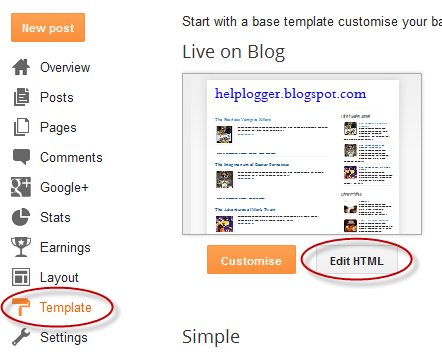
1. Open your Blogger dashboard, go to Template and press the Edit HTML button.
2. Click anywhere inside the code area and press CTRL + F keys to open the search box.
3. Type the <head> tag inside the search box and press Enter to find it.

font awesome stylesheet

4. Add the following line of code referencing the location of the font-awesome.min.css stylesheet just below the <head> tag:
<link rel="stylesheet" href="https://maxcdn.bootstrapcdn.com/font-awesome/4.7.0/css/font-awesome.min.css" />

5. Click the 'Save template' button to save the changes and start playing with Font Awesome!

Using the Font Awesome Icons

After you get the steps in the previous section done, you're now ready to use Font Awesome in your blog. The first thing you need to do is add the social icons links to the HTML and delete the icons that you don't need anymore. This is a sample HTML that you can add:
<div id="fawesomeicons">
<a href="URL-HERE" title="Facebook" target="_blank" rel="nofollow"><i class="fa fa-facebook"></i></a>
<a href="URL-HERE" title="Google Plus" target="_blank" rel="nofollow"><i class="fa fa-google-plus"></i></a>
<a href="URL-HERE" title="Twitter" target="_blank" rel="nofollow"><i class="fa fa-twitter"></i></a>
<a href="URL-HERE" title="Pinterest" target="_blank" rel="nofollow"><i class="fa fa-pinterest"></i></a>
<a href="URL-HERE" title="Instagram" target="_blank" rel="nofollow"><i class="fa fa-instagram"></i></a>
<a href="URL-HERE" title="Bloglovin" target="_blank" rel="nofollow"><i class="fa fa-heart"></i></a>
<a href="URL-HERE" title="Tumblr" target="_blank" rel="nofollow"><i class="fa fa-tumblr"></i></a>
<a href="URL-HERE" title="RSS" target="_blank" rel="nofollow"><i class="fa fa-rss"></i></a>
</div>
In the above HTML code, we can see 8 separate social icons which can be recognized by looking at the link title attribute. For example, the first one is for Facebook.

To use the social icons, paste your URL where it says URL-HERE for each social icon you want to include. Put the link between the quotes and make sure to not remove any of the quotation marks.

If you want to remove a social icon, just delete that line of code starting with "<a href" and ending with "</a>".

Now, keep in mind that Font Awesome works anywhere with the <i> tag as it was designed to work with inline elements. Although you can use <span>, official documentation prefers the <i> option for brevity.

Font Awesome icons can be placed anywhere using the CSS prefix fa together with the name of the icon. For a list of social media icon names, you can refer to the official website of Font Awesome.

Let's say that you want to display a Youtube icon so you can link it to your official account on the platform. Find the Youtube icon on the list and click on it:

font awesome icon

That will bring you to a page for Youtube where you will see this code:
font awesome social icons

To include the icon within the list, copy any line starting with "<a href" and ending with "</a> from the code above, paste where you want it to appear and replace the code starting with "<i class="fa " and ending with "</i>" with that of your chosen icon.

Finally, after adding the icon, the list will look like this:
<div id="fawesomeicons">
<a href="URL-HERE" title="Facebook" target="_blank" rel="nofollow"><i class="fa fa-facebook"></i></a>
<a href="URL-HERE" title="Google Plus" target="_blank" rel="nofollow"><i class="fa fa-google-plus"></i></a>
<a href="URL-HERE" title="Twitter" target="_blank" rel="nofollow"><i class="fa fa-twitter"></i></a>
<a href="URL-HERE" title="Pinterest" target="_blank" rel="nofollow"><i class="fa fa-pinterest"></i></a>
<a href="URL-HERE" title="Instagram" target="_blank" rel="nofollow"><i class="fa fa-instagram"></i></a>
<a href="URL-HERE" title="Bloglovin" target="_blank" rel="nofollow"><i class="fa fa-heart"></i></a>
<a href="URL-HERE" title="Tumblr" target="_blank" rel="nofollow"><i class="fa fa-tumblr"></i></a>
<a href="URL-HERE" title="RSS" target="_blank" rel="nofollow"><i class="fa fa-rss"></i></a>
<a href="URL-HERE" title="Youtube" target="_blank" rel="nofollow"><i class="fa fa-youtube"></i></a>
</div>
Note: don't forget to change the title and add your URL between the quotes.

Once you've finished editing the icons, insert the code into a HTML/Javascript gadget by going to "Layout" and click on the "Add a gadget" link. If you're using WordPress, paste it in a Text widget.

Customize the Font Awesome Icons Using CSS

Suppose you want to make the icons a lot bigger than they currently are. That task is made simple with the use of CSS. Here's a sample code:
#fawesomeicons a {
    font-size: 16px;
    width: 30px;
    height: 30px;
    line-height: 30px;
}
To change the font size, increase or decrease the 16px value. Below are the values (30px) for the container's width and height which should always match. Increasing/decreasing these values, will increase/decrease the size of the container where is the font.

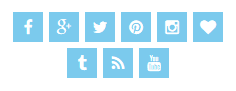
Here are some different styles for the font awesome social icons. In the CSS, look for the #background-color, #border-color, #font-color and #hover-color text so that you can know here to put the color codes. You can use this tool to generate the color code: Color Code Generator. If you don't know how to add CSS, follow this tutorial.
font awesome social icons

#fawesomeicons {
text-align: center;
}
#fawesomeicons a {
background: #background-color;
color: #font-color;
display: inline-block;
font-size: 16px;
width: 30px;
height: 30px;
line-height: 30px;
margin: 0 1px 6px;
}
#fawesomeicons a:hover{
background: #hover-color;
}

font awesome social icons

#fawesomeicons {
text-align: center;
}
#fawesomeicons a {
background: #background-color;
color: #font-color;
display: inline-block;
font-size: 16px;
width: 30px;
height: 30px;
line-height: 30px;
margin: 0 1px 6px;
-webkit-border-radius: 100%;
-moz-border-radius: 100%;
border-radius: 100%;
}
#fawesomeicons a:hover{
background: #hover-color;
}

font awesome social icons

#fawesomeicons {
text-align: center;
}
#fawesomeicons a {
border: 1px solid #border-color;
color: #font-color;
display: inline-block;
font-size: 16px;
width: 30px;
height: 30px;
line-height: 30px;
margin: 0 1px 6px;
}
#fawesomeicons a:hover{
background: #hover-color;
}

font awesome social icons

#fawesomeicons {
text-align: center;
}
#fawesomeicons a {
border: 1px solid #border-color;
color: #font-color;
display: inline-block;
font-size: 16px;
width: 30px;
height: 30px;
line-height: 30px;
margin: 0 1px 6px;
-webkit-border-radius: 100%;
-moz-border-radius: 100%;
border-radius: 100%;
}
#fawesomeicons a:hover{
background: #hover-color;
}

font awesome social icons

#fawesomeicons {
text-align: center;
}
#fawesomeicons a {
color: #font-color;
display: inline-block;
font-size: 23px;
margin: 0 6px 6px;
}
#fawesomeicons a:hover{
background: #hover-color;
}

Now, what if we want to change the background or font color of a specific icon? First, we need to identify the icon class which is just after the <i class="fa ..." and add it like this:
#fawesomeicons a .fa-facebook {
background: #background-color;
color: #font-color;
}
Here, we can change the background and color for the Facebook icon but we can do it for any icon you want. For example, let's add another rule for the twitter icon:
#fawesomeicons a .fa-facebook {
background: #background-color;
color: #font-color;
}
 #fawesomeicons a .fa-twitter {
background: #background-color;
color: #font-color;
}
To make the fonts bigger, we can add the CSS code like this:
#fawesomeicons {
text-align: center;
}
#fawesomeicons a .fa{
display: inline-block;
font-size: 16px;
width: 30px;
height: 30px;
line-height: 30px;
}
#fawesomeicons a .fa-facebook {
background: #background-color;
color: #font-color;
}
 #fawesomeicons a .fa-twitter {
background: #background-color;
color: #font-color;
}
To apply, copy the code above and add the CSS rule with the icon class that you wish to change.

Important: When adding the class for your icon, always put a dot (.) in front of it as you can see in the example above, otherwise it won't work.

And that's it! Hopefully, this tutorial helped you to add Font Awesome social icons in Blogger. If you're still in trouble adding them, please take a look at Examples page.

Wednesday, 11 March 2015

Building a List/Grid View Switcher in Blogger with Auto Read More

A list of posts in grid or list view provides a more defined canvas with which a blogger or website owner can use as a guide in creating content. This concept has extended to visitors, where they can have control on whether or not they wish to display posts in list or grid view. While custom modification codes are shared by some blogging sites, others are not. Some that are shared, however, can be complex even to bloggers themselves, such as JQuery.

The good news is there are lightweight codes available, including the Auto Read More in Blogger. Through it, a blogger can add two buttons that will enable visitors to switch between grid view and list view, depending on what they prefer. These buttons, however, are only visible on limited pages - homepage, label page and archive page. Nonetheless, it is better than not having this particular feature at all.
Unlike JQuery, the Auto Read More uses HTML, CSS and JavaScript. To view posts in a list view, two sets of CSS codes are added as one. Another set is added to view posts in grid view. Other combination of codes is used to enable easy switch between views, particularly at a click of a button.


How to Add a List/Grid View Switcher in Blogger

Step 1. Log into your Blogger dashboard and select your blog, then go to "Template" > press the "Edit HTML" button.

Step 2. Click anywhere inside the code area and press the CTRL + F keys to open the search box. Type this tag below inside the box and hit Enter to find it:
</head>
Step 3. Just above the </head> tag, copy and paste the following CSS style and scripts:
<script type='text/javascript'>
function list_view(){
if(document.getElementsByClassName(&quot;post&quot;)) {elementArray = document.getElementsByClassName(&quot;post&quot;); while (elementArray.length) {elementArray[0].className = &quot;post-grid-view&quot;;}}
if(document.getElementsByClassName(&quot;post-title&quot;)) {elementArray = document.getElementsByClassName(&quot;post-title&quot;); while (elementArray.length) {elementArray[0].className = &quot;post-title-grid&quot;;}}
}
function grid_view(){
if(document.getElementsByClassName(&quot;post-grid-view&quot;)) {elementArray = document.getElementsByClassName(&quot;post-grid-view&quot;); while (elementArray.length) {elementArray[0].className = &quot;post&quot;;}}
if(document.getElementsByClassName(&quot;post-title-grid&quot;)) {elementArray = document.getElementsByClassName(&quot;post-title-grid&quot;); while (elementArray.length) {elementArray[0].className = &quot;post-title&quot;;}}
}
</script>
 <script type='text/javascript'>
posts_no_thumb_sum = 100;
posts_thumb_sum = 350;
</script>

<script type='text/javascript'>
//<![CDATA[
function removeHtmlTag(strx,chop){
if(strx.indexOf("<")!=-1)
{
var s = strx.split("<");
for(var i=0;i<s.length;i++){
if(s[i].indexOf(">")!=-1){
s[i] = s[i].substring(s[i].indexOf(">")+1,s[i].length);
}
}
strx = s.join("");
}
chop = (chop < strx.length-1) ? chop : strx.length-2;
while(strx.charAt(chop-1)!=' ' && strx.indexOf(' ',chop)!=-1) chop++;
strx = strx.substring(0,chop-1);
return strx+'...';
}
function createSummaryAndThumb(pID, pURL, pTITLE){
var div = document.getElementById(pID);
var imgtag = "";
var img = div.getElementsByTagName("img");
var summ = posts_no_thumb_sum;
if(img.length>=1) {
imgtag = '<span class="posts-thumb" style="float:left; margin-right: 10px;"><a href="'+ pURL +'"><img src="'+img[0].src+'" /></a></span>';
summ = posts_thumb_sum;
}

else {
imgtag = '<span class="posts-thumb" style="float:left; margin-right: 10px;"><a href="'+ pURL +'" title="'+ pTITLE+'"><img src="https://blogger.googleusercontent.com/img/b/R29vZ2xl/AVvXsEjRxTAHky18TDXgB3eKtk8UKzZowN5bi2EU0VDHrJu1daSBRQUcetycKqSIAtRjyAhlDsMQjVJ3MQx-xrLokYO1HIP1DcCl-l62wAXLuVk9WQKl9pjzvHPDyUkbwlFH8AbDsfkq8Cu-czzk/s1600/sorry-image-not-available.png" style="margin-top: -30px;" /></a></span>';
summ = posts_thumb_sum;
}

var summary = imgtag + '<a href="'+ pURL +'"><div class="post-summary-text">' + removeHtmlTag(div.innerHTML,summ) + '</div></a>';
div.innerHTML = summary;
}
//]]>
</script>

<b:if cond='data:blog.pageType != &quot;static_page&quot;'>
<b:if cond='data:blog.pageType!= &quot;item&quot;'>
<style>
#list-view-button {font-family: Verdana; text-align:left;cursor:pointer;font-size: 14px;border-bottom: 5px solid #eaeaea;text-decoration: none;}
#list-view-button a{text-decoration: none; color: #666;}
.grid-view-button {background-color:#efefef;color:#666;padding:5px 10px;border-radius: 5px;font-size: 12px;}
.list-view-button {background-color:#efefef;color:#000;padding:5px 10px;border-radius: 5px;font-size: 12px;}
.post-grid-view {width:100%;height:250px;overflow: hidden;float:left;margin:0px 0px 20px !important;position:relative;display: block; -webkit-transition:all 0.5s ease 0s; -moz-transition:all 0.5s ease 0s; -o-transition:all 0.5s ease 0s; transition:all 0.5s ease 0s; }
.post-grid-view .posts-thumb {width:40% !important;height:250px !important;float:left;margin:0px;position:relative;border-top: 0px solid transparent !important;overflow: hidden;}
.post-grid-view .post-header {display: none;}
.post-grid-view .post-body img {min-width: 300px !important; min-height: 250px !important;display:block;width:100%!important;height:auto!important;max-width:800px!important;max-height:400px!important;border:none;outline:none;position:relative;margin: 0px;padding:0;}
.post-grid-view .post-summary-text {opacity: 1; background: none; width: 58%;font-size: 120% !important;clear: none !important; display: inline-block !important; padding: 80px 0px !important; color: #666 !important; text-shadow: none !important; float: right !important; text-align: left; position: relative !important; font-family: &#39;Open Sans Condensed&#39;, sans-serif;}
.post-grid-view .post-body {height: 250px;background:#f5f5f5; box-shadow: none !important;}
.post-title-grid a { font-size:170%;color: #777;font-family: &#39;Open Sans Condensed&#39;, sans-serif;}
.post-title-grid { position: absolute; left: 42%; top: 5%; z-index: 1;}
.post-grid-view .post-footer {left: 41%; display:block;position: absolute; bottom: 2%;font-size: 120%; background: transparent !important; border: 0px solid transparent !important;font-family: &#39;Open Sans Condensed&#39;, sans-serif;}
.post-grid-view .post-footer a{color: #128EC9;}
.post-grid-view a.comment-bubble {display: none;}
.main-inner .column-center-inner .section {margin: 0px !important;}
.post { -webkit-transition:all 0.5s ease 0s; -moz-transition:all 0.5s ease 0s; -o-transition:all 0.5s ease 0s; transition:all 0.5s ease 0s;}

#blog-pager {clear:both;}
.post {height:auto;width:32.2%;display:inline-block;text-decoration:none;float:left;margin:0 1% 1% 0%;overflow: hidden;padding:0!important;}
.date-header {display: none;}
h3.post-title a {font-size:90%;font-family: &#39;Open Sans Condensed&#39;, sans-serif;text-transform:uppercase;color:#fff;text-shadow: 1px 1px 0 rgba(0, 0, 0, 0.1);font-weight: bold;}
h3.post-title {text-align: center; position:absolute;top:0;width:100%;overflow:hidden;margin:0px !important;padding-top: 30%; background-color: rgba(50, 126, 213, 0.8);transform: scale(1);opacity: 0;z-index: 10;height: 100%;transition: all 300ms ease-out 0s;}
h3.post-title:hover {opacity: 1;}
.posts-thumb {width:100%!important;height:200px!important;overflow:hidden;clear:both;}
.post-body {border-radius:2px;box-shadow:0 5px 4px 1px rgba(0,0,0,0.1);position:relative;overflow: hidden;}
.post-body a {text-decoration: none;}
.post-body img {display:block;width:100%!important;height:auto!important;max-width:800px!important;max-height:400px!important;min-width:200px!important;min-height:200px!important;border:none;outline:none;position:relative;margin: 0px;padding:0;}
.post-summary-text {display: none;}
a.comment-bubble {color:#fff;text-decoration:none;font-size:100%;width: 100%;text-align: center;position:absolute;top:175px;left: 0px;text-shadow:1px 2px 1px #333;font-family: &#39;Pacifico&#39;, cursive;z-index: 122;}
a.comment-bubble:before { content: &quot;Comments: &quot; url(https://blogger.googleusercontent.com/img/b/R29vZ2xl/AVvXsEhN4zKBy7uJUX_cRJ7b4Ulobam_lJPnoZ5yk-N-4DtcCXAK7Lb5vbYQ8Y3dIdNE7npZaoOBw8lGiK3HK9T2XqIfw0b04MqQEOPnpUEWvUvNuuW-4xAPweiN_R_MAcGHFNw7Di-8EHLW65MA/s1600/heart-active.png);}
.post-header,.post-footer {display:none;}
</style></b:if></b:if>
<link href='http://fonts.googleapis.com/css?family=Open+Sans+Condensed:300' rel='stylesheet' type='text/css'/>
<link href='http://fonts.googleapis.com/css?family=Pacifico' rel='stylesheet' type='text/css'/>

Step 4. Next, search for the following line:
<b:section class='main' id='main' name='Main' showaddelement='no'>
...in case you can't find it, search for this one instead:
<b:section class='main' id='main' name='Main' showaddelement='yes'>
Step 5. Just above this line, add the following code:
<b:if cond='data:blog.pageType != &quot;static_page&quot;'>
<b:if cond='data:blog.pageType!= &quot;item&quot;'>
<div id='list-view-button'><a class='grid-view-button' onclick='grid_view()'><img src='https://blogger.googleusercontent.com/img/b/R29vZ2xl/AVvXsEhwXf_1sxCLWa0yhnXfNacXRQ2xsz1UNz913opdLz5AvFKbl1qeZEuDu_KF9WCorISAB_1HihlZUvT3ChXmnf5CsscEXumfZcAHagUnT322tJMd_Ia4DkGU_lJFfw-CSj16C0iyAH1Tion0/s1600/search-grid-icon.png' style='margin: -8px 1px -3px -6px;width: 16px;'/> Grid View</a> <a class='list-view-button' onclick='list_view()'><img src='https://blogger.googleusercontent.com/img/b/R29vZ2xl/AVvXsEi4n2bC8BNVws1vfOWAdN5QKC_9c3ti92GNOJrFOgd_u3aXXoDy7oH33EPWN4Bnu6L-8EmpYpCcq2YSEvQbknjnMe6O8SvzE4jvXauuBMHQBsqc5IyZbkNwJYP4PPO1R2_4WhqzYPWt4sMG/s1600/icon-list-view.png' style='margin: -8px 1px -3px -6px;width: 16px;'/> List View</a></div>
</b:if></b:if>
Step 6. Now, search the tag below:
<data:post.body/>
Step 7. You will find 3 occurrences of this code... replace only the second and third one with this one below:
 <b:if cond='data:blog.pageType != &quot;static_page&quot;'>
    <b:if cond='data:blog.pageType != &quot;item&quot;'>
        <div expr:id='&quot;summary&quot; + data:post.id'>
            <data:post.body/>
        </div>
        <script type='text/javascript'>createSummaryAndThumb(&quot;summary<data:post.id/>&quot;,&quot;<data:post.url/>&quot;);</script>
        <b:if cond='data:post.allowComments'>
            <a class='comment-bubble' expr:href='data:post.addCommentUrl' expr:onclick='data:post.addCommentOnclick'>
                <data:post.numComments/>
            </a>
        </b:if>
    </b:if>
</b:if>
<b:if cond='data:blog.pageType == &quot;item&quot;'>
    <data:post.body/>
</b:if>
<b:if cond='data:blog.pageType == &quot;static_page&quot;'>
    <data:post.body/>
</b:if>

Important: if you already added the auto read more script, remove the previous one in order to make this work.

Step 8. Finally, click "Preview" to see if everything looks good and press the 'Save Template' button to save the changes...

That's it!

Adding a dynamic view switcher on a blog will make viewing content a lot easier for visitors. Whether using a list or grid view, a more compressed list of posts will eliminate the need to click on the next page, which could take time if loading takes a while to complete. For a blog archive, using the Auto Read More codes in Blogger will surely make everyone's viewing experience very convenient.

Considering the ease with which the codes can be customized, building a list/grid view switcher would be completed in no time. A real bonus is that Auto Read More works on all platforms, with cross-browser support as well.

Thursday, 5 March 2015

Add Masonry, Grid Layouts to Blogger Posts with CSS and Javascript

How a website's content is displayed can spell the difference between being popular and obscure. Anything that looks chaotic or hardly readable is never going to be anyone's favorite. This is why content must be displayed in an organized, easy to follow and straightforward manner. Nothing works better than a structured grid, in this case.

Posts listed in grid view provide an excellent viewing experience for both the blogger or website owner and the visitors. This is especially true if the grid comes with images that would play with a person's visual inclination. What is great about grids is the seamless and smooth layout, complemented with a structured yet simple architecture. This makes it easier to navigate through a blog archive or product page. The style also enables a website owner to present posts in a more artistic and informative manner, without delving into the details. Suffice to say that a grid view demands creativity to be effortlessly mixed with functionality.

How views can be switched depends on a number of changes in a blog's codes. Some are fairly easy to implement, while others can be a little complex. Not to worry, as there are guides that will be provided. Grid styles also come in huge varieties, with each one designed to cater to a specific audience. Now, are you ready to go on the grid?

Features

What features can you expect from a grid style post in Blogger?

  • All the posts will follow the grid style when switching to grid view.
  • While the codes are being customized, the posts are left untouched. Their length, however, could be changed accordingly.
  • Auto Read More will be applied on all posts.
  • Thumbnails are automatically added based on the first picture found in each post.
  • Code is secure and is used across the board. In fact, 99% of bloggers are using a similar code to enable grid style posts in blogger.

What are the benefits of grid style?

  • Quick loading time of posts. Since only the snippets are loaded in certain pages, or a thumbnail and a caption, pulling up a blog archive would be quicker. When loading time is decreased, user experience is greatly enhanced.
  • Professional-looking blog. Without the chaos and concerns on readability, a website can look really clean and professional. Combined with the right colors and images, it can also leave a visual impact.
  • Improved website ranking. Because visitors have to click in order to view the rest of the post, page views of a site will significantly increase. This makes for a better SEO strategy.
Although changes to the CSS codes have to be made to implement the grid style view and make it compatible with a blog's template, all the work will be worth it once it is up and running.

Important:
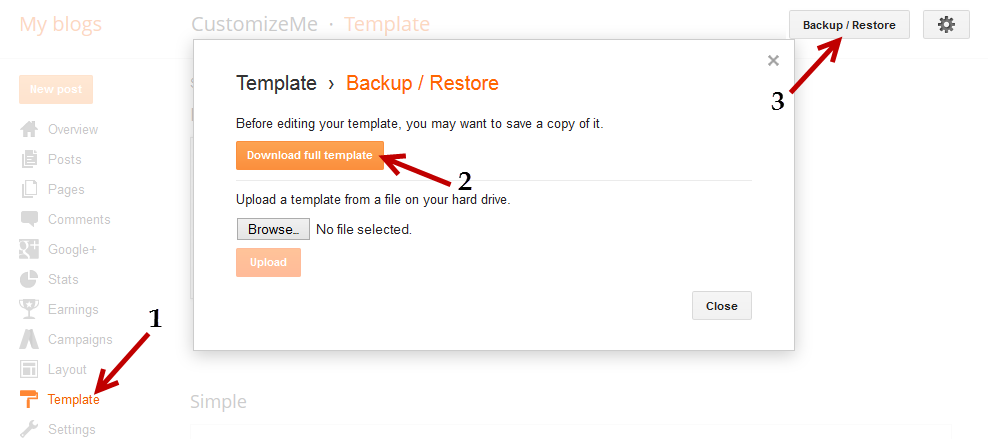
Before anything make sure that you backup your Blogger template! If have encounter any problems with your edits, you can revert the template back to its previous condition by restoring it from your backup. For this, go to 'Template' in the left menu > click on the 'Backup/Restore' button in the upper right corner and press the 'Download Full Template' button - choose where you want to save the file on your computer and click the 'Save' button.

Now we can safely proceed with editing our Blogger template. If you run into problems, just revert back to your saved template.

How to Create Masonry, Grid Style Posts in Blogger

Step 1. Log into your Blogger dashboard and click on the blog where you want to apply the grid style.

Step 2. Go to "Template" located on the left side of the screen and press the "Edit HTML" button.

Step 3. Click anywhere inside the code area and press the CTRL+F keys to open the search box, then type the following tag inside the box (hit Enter to find it):
</head>
Step 4. Now copy the script below and paste it just before the </head> tag:
<script type='text/javascript'>
posts_no_thumb_sum = 100;
posts_thumb_sum = 100;
</script>
<script type='text/javascript'>
//<![CDATA[
function removeHtmlTag(a,b){if(a.indexOf("<")!=-1){for(var c=a.split("<"),d=0;d<c.length;d++)c[d].indexOf(">")!=-1&&(c[d]=c[d].substring(c[d].indexOf(">")+1,c[d].length));a=c.join("")}for(b=b<a.length-1?b:a.length-2;" "!=a.charAt(b-1)&&a.indexOf(" ",b)!=-1;)b++;return a=a.substring(0,b-1),a+"..."}function createSummaryAndThumb(a,b,c){var d=document.getElementById(a),e="",f=d.getElementsByTagName("img"),g=posts_no_thumb_sum;f.length>=1?(e='<div class="posts-thumb" style="float:left;"><a href="'+b+'"><img src="'+f[0].src+'" /></a></div>',g=posts_thumb_sum):(e='<div class="posts-thumb" style="float:left;"><a href="'+b+'" title="'+c+'"><img src="https://blogger.googleusercontent.com/img/b/R29vZ2xl/AVvXsEjRxTAHky18TDXgB3eKtk8UKzZowN5bi2EU0VDHrJu1daSBRQUcetycKqSIAtRjyAhlDsMQjVJ3MQx-xrLokYO1HIP1DcCl-l62wAXLuVk9WQKl9pjzvHPDyUkbwlFH8AbDsfkq8Cu-czzk/s1600/sorry-image-not-available.png" /></a></div>',g=posts_thumb_sum);var h=e+'<div class="post-summary-text">'+removeHtmlTag(d.innerHTML,g)+"</div>";d.innerHTML=h}
//]]>
</script>
Step 5. Find the following code snippet using CTRL+F or Command + F:
<data:post.body/>
Step 6. After pressing the "Enter" key on your keyboard, you may find three occurrences of the above code, replace only the second and the third one with this code below:
<b:if cond='data:blog.pageType != &quot;static_page&quot;'>
    <b:if cond='data:blog.pageType != &quot;item&quot;'>
        <div expr:id='&quot;summary&quot; + data:post.id'>
            <data:post.body/>
        </div>
        <script type='text/javascript'>createSummaryAndThumb(&quot;summary<data:post.id/>&quot;,&quot;<data:post.url/>&quot;);</script>
        <b:if cond='data:post.allowComments'>
            <a class='comment-bubble' expr:href='data:post.addCommentUrl' expr:onclick='data:post.addCommentOnclick'>
                <data:post.numComments/>
            </a>
        </b:if>
    </b:if>
</b:if>
<b:if cond='data:blog.pageType == &quot;item&quot;'>
    <data:post.body/>
</b:if>
<b:if cond='data:blog.pageType == &quot;static_page&quot;'>
    <data:post.body/>
</b:if>

Step 7. Now choose one of the styles below, copy the code provided and paste it just above the </head> tag:

Simple Grid Design


<b:if cond='data:blog.pageType != &quot;static_page&quot;'>
<b:if cond='data:blog.pageType!= &quot;item&quot;'>
<style type="text/css">
#blog-pager{clear:both}.post{height:auto;width:30.8%;overflow:hidden;display:inline-block;text-decoration:none;float:left;margin:0 1.1% 2%;padding:0!important}h3.post-title a{font-size:75%;font-family:&#39;Open Sans Condensed&#39;,sans-serif;text-transform:uppercase;padding:0;color:#444}h3.post-title{height:26px;text-align:center;width:100%;margin:0!important;padding-bottom:4%}.date-header{display:none}.post-body a{text-decoration:none}.posts-thumb{width:100%;height:190px;overflow:hidden;position:relative}.posts-thumb img{position:absolute;left:-100%;right:-100%;top:-100%;bottom:-100%;margin:auto;width:auto;max-width:340px;height:auto;padding:0;border:none;outline:none;}.post-summary-text{color:#777;font-size:100%!important;font-family:&#39;Open Sans Condensed&#39;,sans-serif;text-align:center;clear:both;overflow:hidden;margin:5px 0 0;padding:7% 10%}a.comment-bubble{color:#fff;text-decoration:none;font-size:100%;font-weight:700;right:10px;position:absolute;top:165px;text-shadow:1px 2px 1px #333;font-family:&#39;Open Sans Condensed&#39;,sans-serif;}a.comment-bubble:before{content:&quot;Comments: &quot;;}.post-header,.post-footer{display:none}
</style></b:if></b:if><link href='http://fonts.googleapis.com/css?family=Open+Sans+Condensed:300' rel='stylesheet' type='text/css'/>

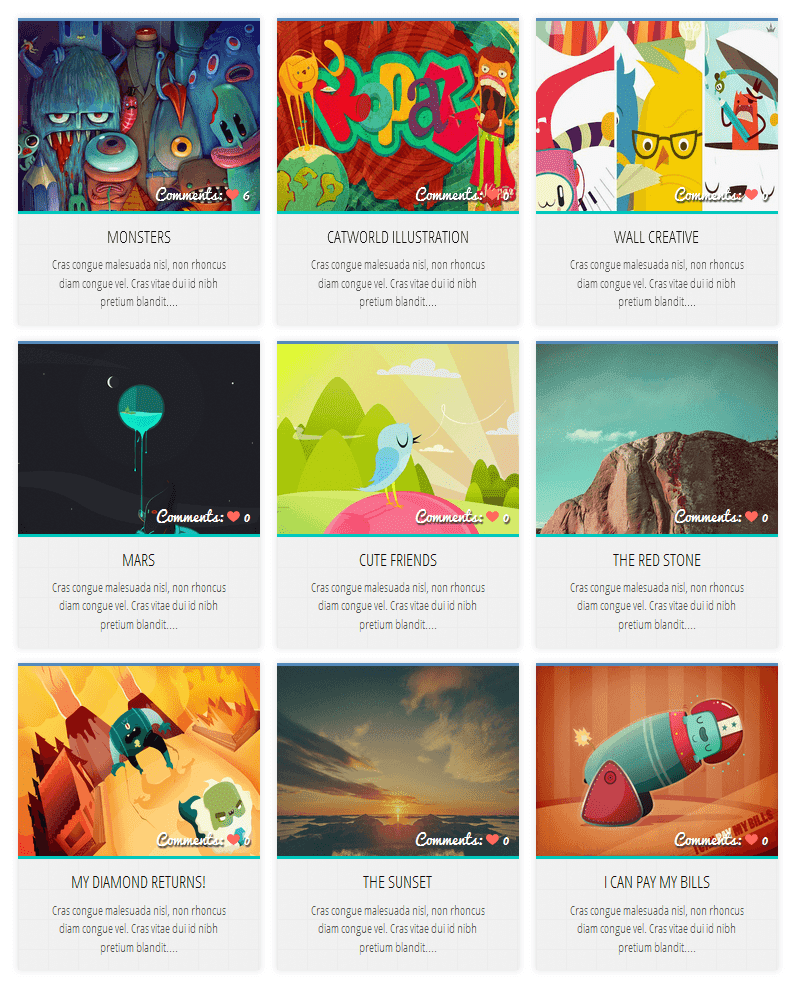
Grid Layout with Post Summary and Thumbnail

grid layout for blogger


<b:if cond='data:blog.pageType != &quot;static_page&quot;'>
<b:if cond='data:blog.pageType!= &quot;item&quot;'>
<style type="text/css">
#blog-pager{clear:both}.post{height:auto;width:31%;display:inline-block;text-decoration:none;float:left;margin:0 1.1% 2%;padding:0!important}h3.post-title a{font:75% &#39;Open Sans Condensed&#39;,sans-serif;text-transform:uppercase;color:#111;padding:0}h3.post-title{text-align:center;height:22px;position:absolute;bottom:23%;width:100%;z-index:101;overflow:hidden;margin:0!important;padding:10px 0 13px}.date-header{visibility:hidden;height:0!important;width:0!important;margin:0!important;padding:0!important}.posts-thumb{width:100%;height:190px;position:relative;overflow:hidden;clear:both;border-bottom:3px solid #00C8BD;border-top:3px solid #558ABB}.posts-thumb:hover{border-top:3px solid #FF664E;border-bottom:3px solid #FEBE36}.post-body{position:relative;height:auto}.post-body a{text-decoration:none}.posts-thumb img{position:absolute;left:-100%;right:-100%;top:-100%;bottom:-100%;margin:auto;width:auto;max-width:340px;height:auto;padding:0;border:none;outline:none}.post-summary-text{color:#555;background:#f5f5f5 url(https://blogger.googleusercontent.com/img/b/R29vZ2xl/AVvXsEgjMxTL4Xp7ctjLOalg4VQMDqM-zULmuo_xVMqZRNbz_bO1X86BtVM-CDH31Vd2_3oJmuFpADLA3pvyRQ2dS70rdx0NAFpExp89y8-bnWAlT6Ly4B-6cp4w94jH1tWTRabxNeafeWM870Nz/s1600/blueprint.png);font:100% &#39;Open Sans Condensed&#39;,sans-serif;text-align:center;clear:both;overflow:hidden;margin:5px 0 0;padding:17% 10% 6%}a.comment-bubble{color:#fff;text-decoration:none;right:10px;position:absolute;top:165px;text-shadow:1px 2px 1px #333;font:110% &#39;Pacifico&#39;,cursive;}a.comment-bubble:before{content:&quot;Comments: &quot; url(https://blogger.googleusercontent.com/img/b/R29vZ2xl/AVvXsEhN4zKBy7uJUX_cRJ7b4Ulobam_lJPnoZ5yk-N-4DtcCXAK7Lb5vbYQ8Y3dIdNE7npZaoOBw8lGiK3HK9T2XqIfw0b04MqQEOPnpUEWvUvNuuW-4xAPweiN_R_MAcGHFNw7Di-8EHLW65MA/s1600/heart-active.png);}.post-header,.post-footer{display:none}
</style></b:if></b:if>
<link href='https://fonts.googleapis.com/css?family=Open+Sans+Condensed:300' rel='stylesheet' type='text/css'/>
<link href='https://fonts.googleapis.com/css?family=Pacifico' rel='stylesheet' type='text/css'/>

Grid Layout with Text Snippet on Hover

blogger posts


<b:if cond='data:blog.pageType != &quot;static_page&quot;'>
<b:if cond='data:blog.pageType!= &quot;item&quot;'>
<style type="text/css">
#blog-pager{clear:both}.post{height:auto;width:31%;display:inline-block;text-decoration:none;float:left;margin:0 1.1% 2%;padding:0!important;}h3.post-title a{font:95% &#39;Open Sans Condensed&#39;,sans-serif;text-transform:uppercase;color:#fff;padding:0;text-shadow:2px 2px 3px #222}h3.post-title{height:22px;text-align:center;position:absolute;top:1%;width:100%;z-index:101;overflow:hidden;margin:0!important;padding:10px 0}.date-header{visibility:hidden;height:0!important;width:0!important;margin:0!important;padding:0!important;}.posts-thumb{width:100%;height:190px;overflow:hidden;position:relative;}.post-body{position:relative;overflow:hidden}.post-body a{text-decoration:none;}.posts-thumb img{position:absolute;left:-100%;right:-100%;top:-100%;bottom:-100%;margin:auto;width:auto;max-width:340px;height:auto;padding:0;border:none;outline:none;}.post-summary-text{cursor:pointer;background-color:rgba(44,77,163,0.8);color:#fff;font:108% &#39;Open Sans Condensed&#39;,sans-serif;overflow:hidden;padding:45px 10px 0;left:0;position:absolute;text-align:center;text-shadow:1px 1px 0 rgba(0,0,0,0.1);top:0;opacity:0;height:100%;transition:all 300ms ease-out 0s;}.post-summary-text:hover{opacity:1;z-index:10;}a.comment-bubble{color:#fff;text-decoration:none;font:104% &#39;Pacifico&#39;,cursive;width:100%;text-align:center;position:absolute;top:160px;left:0;text-shadow:1px 2px 1px #333;z-index:11;}a.comment-bubble:before{content:&quot;Comments: &quot;}.post-header,.post-footer{display:none}
</style></b:if></b:if>
<link href='https://fonts.googleapis.com/css?family=Open+Sans+Condensed:300' rel='stylesheet' type='text/css'/>
<link href='https://fonts.googleapis.com/css?family=Pacifico' rel='stylesheet' type='text/css'/>

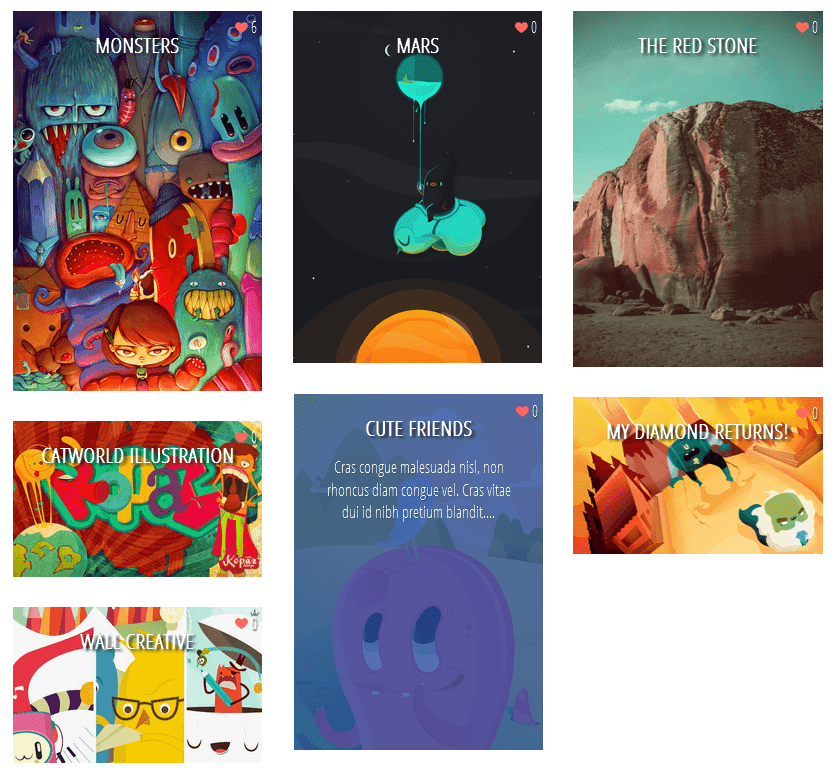
Masonry Layout (Pinterest Like Grid)

masonry layout for blogger


<b:if cond='data:blog.pageType != &quot;static_page&quot;'>
<b:if cond='data:blog.pageType!= &quot;item&quot;'>
<style type="text/css">
#blog-pager{clear:both;position:absolute;bottom:0;left:0}.blog-feeds{display:none}.post{height:auto;width:100%;padding:0!important;margin:0 0 30px;display:inline-block;text-decoration:none}h3.post-title a{font:bold 95% &#39;Open Sans Condensed&#39;,sans-serif;text-transform:uppercase;padding:0;color:#fff;text-shadow:3px 2px 2px #222;}h3.post-title,.comments h4{margin:0!important;text-align:center;padding:10px 0;position:absolute;top:10px;width:100%;z-index:200}.post-header{display:none}.date-header{visibility:hidden;height:0!important;width:0!important;padding:0!important;margin:0!important}.posts-thumb{width:100%;height:auto;overflow:hidden;clear:both}.post-body{overflow:hidden;position:relative}.post-body a{text-decoration:none}.post-body img{display:block;width:auto;height:auto;max-width:100%;max-height:none;min-width:100%;min-height:auto;margin:0;padding:0;border:none;outline:none;position:relative}.post-summary-text{cursor:pointer;background-color:rgba(44,77,163,0.8);color:#fff;font:120% &#39;Open Sans Condensed&#39;,sans-serif;padding:84px 10% 0;left:0;position:absolute;text-align:center;vertical-align:bottom;text-shadow:1px 1px 0 rgba(0,0,0,0.1);top:0;opacity:0;z-index:10;height:100%;transition:all 300ms ease-out 0s;}.post-summary-text:hover{opacity:1}.post-footer{display:none}a.comment-bubble{color:#fff;text-decoration:none;font:120% &#39;Open Sans Condensed&#39;,sans-serif;right:5px;z-index:222;position:absolute;top:5px;text-shadow:1px 2px 1px #333;}a.comment-bubble:before{content:url(https://blogger.googleusercontent.com/img/b/R29vZ2xl/AVvXsEhN4zKBy7uJUX_cRJ7b4Ulobam_lJPnoZ5yk-N-4DtcCXAK7Lb5vbYQ8Y3dIdNE7npZaoOBw8lGiK3HK9T2XqIfw0b04MqQEOPnpUEWvUvNuuW-4xAPweiN_R_MAcGHFNw7Di-8EHLW65MA/s1600/heart-active.png);}.main-inner .column-center-inner{-moz-column-count:3;-moz-column-gap:1px;-webkit-column-count:3;-webkit-column-gap:1px;column-count:3;column-gap:1px;width:100%;padding:0!important}
</style></b:if></b:if>
<link href='https://fonts.googleapis.com/css?family=Open+Sans+Condensed:300' rel='stylesheet' type='text/css'/>

Please note that the masonry layout might not work if you have a customized template, also older posts will appear vertically (from top to bottom) instead of left to right.

Step 8. Click "Preview" and if everything looks fine, press the "Save Template" button.

That's it!
Implementing a grid style view has its pros and cons, but the benefits clearly outweigh the disadvantages. The fact that a website will look visually appealing and professional when set in grid style, is already enough to boost its online reputation. An increase in page views is just the beginning. With the right images and content, a blog will also have better SEO. Most importantly, implementing the changes is not as complex as some might think. With a step-by-step guide available, adding a dynamic view switcher would be completed in no time.

Tuesday, 26 August 2014

How Firebug Helps You Design Your Blogger Blog

For most bloggers, the idea of adjusting the coding of their blog to improve the user experience is daunting at best and often quite frightening. HTML5, CSS, and other coding elements are their own virtual language and for the average Blogger user looking to update a personal blog, the automatic settings are about as good as it gets. What if there was a better way to code a blog, whether a beginner or a pro, that could be done within the browser itself?

If you're using Firefox or Chrome, then you should also be using Firebug. It allows you to code your website in real time, so you can maximize the UX of your blog in no time at all.

You No Longer Need To Edit Through Blogger!

If you've ever tried to update a Blogger theme through the editing functions of the website, then you know how difficult it can be. You can preview your designs, but you can't save any changes to officially see what is going to happen with your site until you publish the edits. If you've missed just one line of code or forgotten one small element, you're going to have to go back into the editing matrix, find the error, update it again, and repeat until you have a responsive blog once again.

What Firebug allows you to do is see all of those elements that make up a website in real time. Instead of editing and then publishing, you can edit in real time and see updates happen, all without affecting the user experiences of visitors that are coming to your site while you're editing. You can change the fonts, colors, or virtually anything else within the design of the site quickly and see the results of your work as it happens. Don't like it? Just undo your changes.

It's really that easy.

Using Firebug to Customize CSS in Blogger

This guide will show you how to modify the CSS code of a Blogger template. Usually, the Blogger Template CSS style declarations are editable through the style.css file, found between the <b:skin> and </b:skin> tags.

To download Firebug and get more details regarding its powerful features, visit: Firebug for Firefox, or if you are using Chrome, get the Firebug Lite app. I would recommend to use Firefox, which is more complete and quick, but, nevertheless, both work the same.

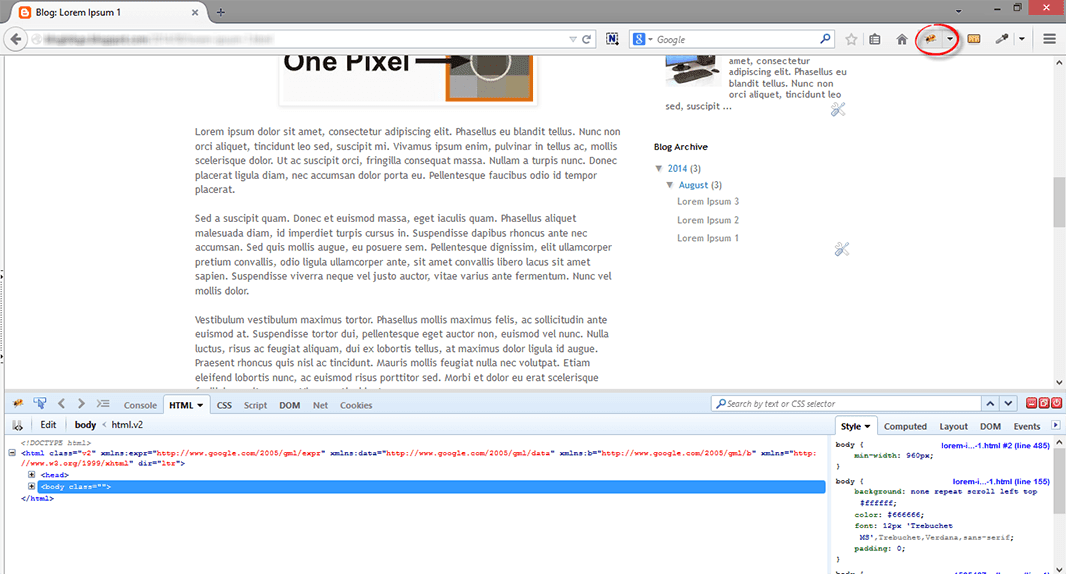
Once Firebug is installed, a small bug icon will be available in the upper right of your Web browser's address bar. Clicking it, a horizontally split screen will be shown at the bottom of the browser's window. The page will continue to show in the upper half, while the lower half will show the HTML of the current web page.
firebug

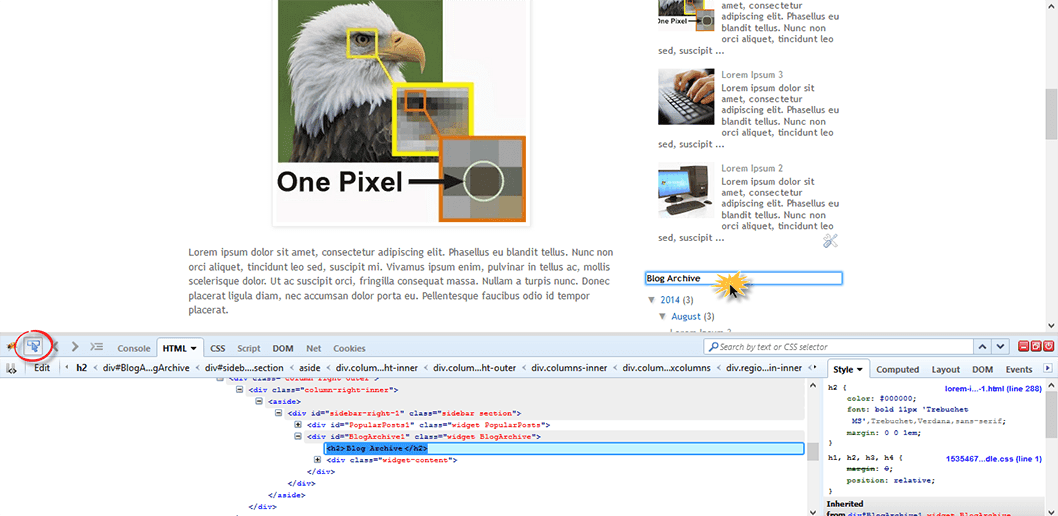
To customize any web element from a Blogger template, just click either on the Firebug icon in the toolbar, or the "Inspect Element with Firebug" item in the context menu. Next, click the blue cursor button to Inspect and place the cursor right over the element to customize.

For example, let's say that we want to change the title of the "Blog Archive" gadget. After we clicked the inspect button, mouse over the "Blog Archive" title which will be highlighted as shown in the screenshot below. To change this element, click on it:

inspect element using firebug

Now that we decided which element we want to change, right click on the "Style" panel and select the "Add rule" option:

add CSS rule in firebug

This will give the class or the id of the highlighted element - in our case, the heading of the Blog Archive (#BlogArchive1 > h2). To edit this rule that we just added, click anywhere near the left curly bracket that will open a text box, so that we can type a new CSS declaration:

firebug css declaration

And here comes the fun part. Let's say that we want to make the title red. We will type color and hit Enter, then we will type the color value or the red text and hit Enter. We will also set the set the font size to 20px, text alignment to center (text-align: center) and make the text underlined (text-decoration: underline):

modify blogger css with firebug

The cool thing about Firebug is that when modifying any CSS property, you can see the results directly applied on the page. So, after adding these declarations, we'll see a big red underlined title for our Blog Archive gadget (see in the screenshot above).
To apply this CSS rule on a Blogger template, just select it beginning from the right curly bracket and to the #(id) or .(class) symbol, then right click it and Copy the CSS code.

copy firebug css rule

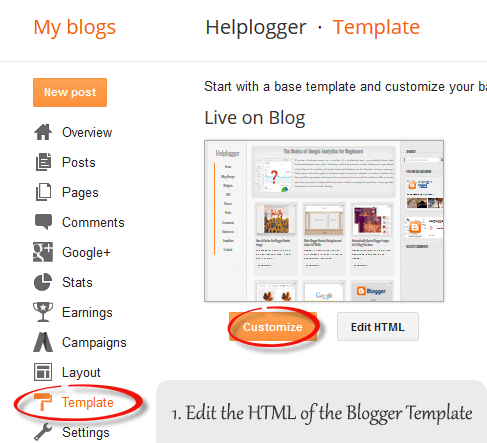
Before making any change, it's highly recommended to make a backup of your current template. Go to "Template" and click the "Backup/Restore" button on the upper right side. On the same "Template" location, click on the "Customize" button and navigate to "Advanced" > "Add CSS". Paste the CSS rule that you just copied into the CSS box:

add firebug css to blogger template

Click the "Apply to blog" button on the upper right corner to save the changes and view your blog.

Firebug Also Gives You One Distinct Advantage...

One of the best reasons to install Firebug into Chrome or Firefox is that it allows you to emulate some of your favorite website designs quickly and easily. Instead of hiring a web designer to do the work, which could cost you thousands, you can simply start Firebug and see what the CSS styles are for your favorite site. This allows you to create a similar widget.

From there, all you've got to do is change the coding to make the design elements work under the rules of your own custom.css. This means you can make easy design changes to your Blogger blog without having to go through all of the menus and editing functions so that your template can truly be your own. Do you have some work to do? Sure - but Firebug does all of the primary work for you.

All you've got to do is have a creative mind and a few minutes to make changes to the coding design. Whether you've been coding for years or are just starting your first blog, this is definitely the best way to make sure that your visitors have the best experience possible!

Monday, 25 August 2014

Add a Pinterest Pin It Mouseover Button on Blogger Images

Images have always played a prominent role in attracting new visitors through search engines like Google and Bing. But when Pinterest decided to enter the social media mix, it upped the ante in a big way.

Pinterest lets blog owners use their service to add a 'pin' to photos or content images on the site. When visitors of that site see a photo they like, they can choose to click on the red Pinterest button for Blogger, and add it to their Pinterest account.

The person who pressed your Pinterest button for Blogger can now see your photo on their dashboard, and share it with friends or followers on the service. They can also come across this photo when users add keywords or category tags to the image. More importantly, that photo links to your site when clicked on and will contain a description title of your blog name or post.

Therefore, adding the Pinterest button for Blogger will help you to benefit from tons of new traffic coming from Pinterest and people who had found your photos and post links using the service. Here are some steps to add your very own Pinterest button.

1. Access your Blogger Template

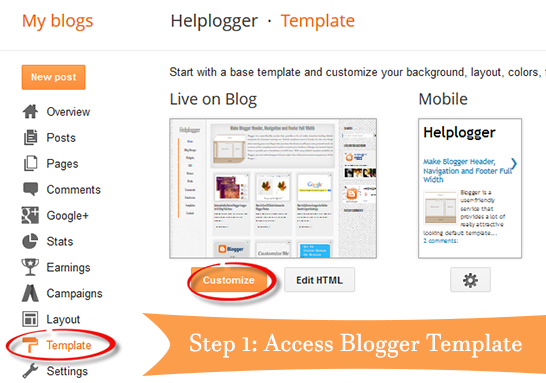
The first thing to do is to edit the code of your template so that it knows when to display this Pinterest Button for Blogger with the content. You can do this by logging into your Blogger Dashboard and finding your way to "Template" > "Edit HTML".

blogger template html

When the editor opens up, it may look a bit foreign to you if you don't have much experience using HTML. Click anywhere inside the code area and search by pressing the CTRL + F keys for the </body> tag - hit Enter to find it:
</body>
The body tags makes up the general content in your webpage. Think of it like the settings panel of a website. If you were to delete everything in this section your site would turn into a blank white page.

2. Add The Pinterest Pin it Script

Once you found the </body> tag, insert the following script just above it:
<script>
//<![CDATA[
var custom_pinit_button = "https://blogger.googleusercontent.com/img/b/R29vZ2xl/AVvXsEj2VfjtXWNxNcqiEnuoZCYow03DrraKE3KSh1msIYJeISlwb_G7BLblJ7FWDbiB4-xaA1sxz1-xjaPUC0jGdkO3IrJ3EZdz-_8NbnsrdvWVD8cUKYPoML7gP0Eq8oLgFoE7Fx5DlqFQwP3F/s1600/pinit-button.png";
var pinit_button_position = "center";
var pinit_button_before = "";
var pinit_button_after = "";
//]]>
</script>
<script src='http://ajax.googleapis.com/ajax/libs/jquery/1.8.2/jquery.min.js' type='text/javascript'></script>
<script id='pinit-img-button' type='text/javascript'>
// Visit helplogger.blogspot.com for more widgets and tricks.
//<![CDATA[
eval(function(p,a,c,k,e,r){e=function(c){return(c<a?'':e(parseInt(c/a)))+((c=c%a)>35?String.fromCharCode(c+29):c.toString(36))};if(!''.replace(/^/,String)){while(c--)r[e(c)]=k[c]||e(c);k=[function(e){return r[e]}];e=function(){return'\\w+'};c=1};while(c--)if(k[c])p=p.replace(new RegExp('\\b'+e(c)+'\\b','g'),k[c]);return p}('1i(1j).1k(r($){$(\'M\').1l(\'<6 p="4:D;" N="A" O="\'+13+\'" >\');$(\'#7-6-P\').1m();3 l;3 m;3 n;$(\'.A\').1n(r(){m=$(\'.A\').E(F);n=$(\'.A\').G(F);$(\'.A\').1o()});3 o=$(\'#7-6-P\').1p().1q("1r.1s.14");o!=-1&&15();r 15(){$(\'.s-16 6,.H-M 6,.s-17 6\').1t(\'.18,.18 6\').1u(r(){$(\'.7-4\').t("4","D");19(l);3 a=$(q);3 b=1a(a.t("Q-u"));3 c=1a(a.t("Q-v"));3 d;3 e;1v(1w){B\'1x\':d=a.9().u+a.G(F)/2-n/2;e=a.9().v+a.E(F)/2-m/2;C;B\'1y\':d=a.9().u+b+5;e=a.9().v+c+a.E()-m-5;C;B\'1z\':d=a.9().u+b+5;e=a.9().v+c+5;C;B\'1A\':d=a.9().u+b+a.G()-n-5;e=a.9().v+c+a.E()-m-5;C;B\'1B\':d=a.9().u+b+a.G()-n-5;e=a.9().v+c+5;C}3 f=a.1C(\'O\');3 g=a.1D(\'.H,.1E,.s\').R(\'.H-S,.s-S,.s-1F\');3 h=g.1G();w(T U===\'V\'){U=\'\'}w(T W===\'V\'){W=\'\'}w(g.R(\'a\').1H){X=g.R(\'a\').I(\'Y\').1b(/\\#.+\\b/1c,"")}Z{X=$(1I).I(\'Y\').1b(/\\#.+\\b/1c,"")}3 i=\'<1d N="7-4" p="1e:x;9: 1J;z-1K: 1L;" ><a Y="1M://1N.14/1O/1P/P/?1Q=\'+X+\'&1R=\'+f+\'&1S=\'+U+h+W+\'" p="1e:1T;1U:x;" 1V="1W"><6 N="1X" p="-1Y-J-K:x;-1Z-J-K:x;-o-J-K:x;J-K:x;10: 0.8;20:21;Q: 0;22: 0;23:0;" O="\'+13+\'" S="24 1f 25" ></a></1d>\';3 j=a.11().26(\'a\')?a.11():a;w(!j.y().27(\'7-4\')){j.28(i);w(T l===\'V\'){j.y(\'.7-4\').I("1g","q.p.10=1;q.p.4=\'12\'")}Z{j.y(\'.7-4\').I("1g","q.p.10=1;q.p.4=\'12\';19(29)")}}3 k=j.y(".7-4");k.t({"u":d,"v":e});k.t("4","12");k.L().1h(2a,1.0,r(){$(q).2b()})});$(\'.s-16 6,.H-M 6,.s-17 6\').1f(\'2c\',r(){w($.2d.2e){3 a=$(q).y(\'.7-4\');3 b=$(q).11(\'a\').y(\'.7-4\');l=2f(r(){a.L().t("4","D");b.L().t("4","D")},2g)}Z{$(\'.7-4\').L().1h(0,0.0)}})}});',62,141,'|||var|visibility||img|pinit||position||||||||||||||||style|this|function|entry|css|top|left|if|none|next||loadpinitbutton|case|break|hidden|outerWidth|true|outerHeight|post|attr|box|shadow|stop|body|class|src|button|margin|find|title|typeof|pinit_button_before|undefined|pinit_button_after|pinitURL|href|else|opacity|parent|visible|custom_pinit_button|com|hoverCheck|content|summary|nopin|clearTimeout|parseInt|replace|gi|div|display|on|onmouseover|fadeTo|jQuery|document|ready|append|hide|load|remove|html|indexOf|helplogger|blogspot|not|mouseenter|switch|pinit_button_position|center|topright|topleft|bottomright|bottomleft|prop|closest|hentry|header|text|length|location|absolute|index|9999|http|pinterest|pin|create|url|media|description|block|outline|target|_blank|pinimg|moz|webkit|background|transparent|padding|border|Pin|Pinterest|is|hasClass|after|pinitOnHover|300|show|mouseleave|browser|msie|setTimeout|3000'.split('|'),0,{}))
//]]>
</script>

adding pinterest script

3. Changing the Position of the Pin it! button

The cool thing about this code is that you have some freedom over where the Pinterest button for Blogger will go over the image. Take a look at the code that you just copied and pasted into the HTML for the word 'center'.
var pinit_button_position = "center";
To move the pin to a different area of the photo, replace center with one of these settings:
topleft
topright
bottomleft
bottomright
And to change the Pin it! button that appears on mouse over, replace the address in blue from above with your own:
var custom_pinit_button = "https://blogger.googleusercontent.com/img/b/R29vZ2xl/AVvXsEj2VfjtXWNxNcqiEnuoZCYow03DrraKE3KSh1msIYJeISlwb_G7BLblJ7FWDbiB4-xaA1sxz1-xjaPUC0jGdkO3IrJ3EZdz-_8NbnsrdvWVD8cUKYPoML7gP0Eq8oLgFoE7Fx5DlqFQwP3F/s1600/pinit-button.png";

pinit script

4. Save The Template

Make sure that you added everything correctly, then save the template and navigate to a recent post that you made that contain images. Hover your mouse over the image and you should now see a red Pinterest button for Blogger displayed on the image. Test it out and see it how it works.

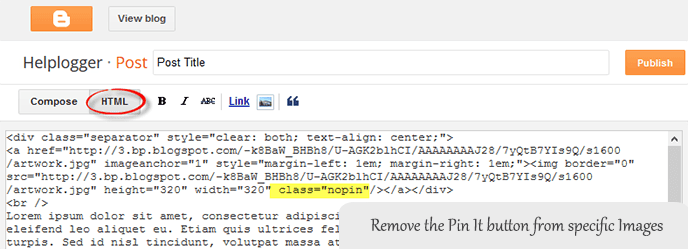
If you want to hide the pinit button from a specific image, when you create a post, switch to the HTML tab of your post editor and type class="nopin" right before the closing slash and angle bracket of your image element, like this:

nopin pinterest

The only downside of this button is that it doesn't take the information from your custom image titles. It's automatically set to take the title of the blog post where the image is located. So, you'll need to pay closer attention to the title of the posts so that it fits closely with the images being shown.

Remember that when you have this code activated, you have to label your titles so that they are relevant to the photos you are posting. This might sound obvious, but sometimes you create a post with an image as a joke that won't make sense in the context of viewing it on Pinterest.

If you use Google Analytics, you can start to see traffic flooding into your site from Pinterest. You should also create your own Pinterest account so that you can manage the content and track how it's being shared. That's it. Enjoy and happy blogging!

Thursday, 14 August 2014

How to Center the Blogger Header Image

The header of a website is what distinguishes your blog; it's your identity or digital fingerprint. Whenever a visitor accesses your blog for the first time, the header is one major aspect that is used to determine who you are and the type of content that they can expect to read. Therefore, it's important to develop a header that is both prominently placed and telling of your brand name.

What would seem to be counterintuitive to that idea is the default Blogger settings for header positioning. Whenever you upload a header to the site, it will automatically be aligned to the left of the page. Some Blogger users may be okay with this setting, especially if they are using a header design that doesn't contain a background. Others may find that their background headers appear cut off, incomplete, or indistinguishable from the rest of their content.

If you find yourself in the second category of users, there is a way to adjust the positioning of your header so that it is displayed as a center Blogger header. By centering your site header, you have greater flexibility over the overall design, and it allows you to really shine light on this content. It's hard to miss a header that is placed smack dab in the middle of the screen on every page that someone navigates to.

Center Header Image with Blogger Template Designer


center blogger header

Making the change is relatively easy. You'll be able to make these adjustments on every page of your Blogger blog without having to change them individually. All you need to do is to modify the CSS of your blog that can be found directly through your Blogger dashboard. Even if you have little to no experience in web design or coding, you can center Blogger header by following these next few steps.

Step 1. Log in your blogger account and select your blog, then go to "Template" and click the "Customize" button on the right side.

center blogger header

Step 2. Navigate to "Advanced" > "Add CSS" tab and paste the code in the empty box:
#header-inner {
background-position: center !important;
width: 100% !important;
text-align: center;
}
#header-inner img {
margin: auto;
}
If you have a small image and you want it to become full width, add this CSS instead:
#header-inner {
 background-size: cover;
 width: 100% !important;
 text-align: center;
 }
 #header-inner img {
 width: 100%;
 height: 100%;
 }

Step 3. Hit the ENTER key after you paste the code snippet, then click the "Apply to Blog" button.

blogger header centered

Here are some other aligning options for your headers:

Align Blogger Header Banner and Text Side by Side

Image on the right and title on the left

#header-inner {
background-position: right !important;
width: 100% !important;
}
.titlewrapper, .descriptionwrapper {
float: left;
clear: both;
margin-left: 20px;
}

Image on the left and title on the right

#header-inner {
background-position: left !important;
width: 100% !important;
}
.titlewrapper, .descriptionwrapper {
float: right;
clear: both;
margin-right: 20px;
}
Note: for larger images, you may need to resize them in order to make them appear side by side with the text.

That's it!
After making the changes to the CSS and saving your modifications, you may navigate back to your homepage. Refresh the page and you'll notice that the header is now centered, instead of on the left. Click on a few of your page links and make sure that this modification has been made to every page or post on the blog.

If by chance you don't see the changes to the header, go back through the code that you modified and make sure that you have copied and pasted the information into the file exactly as instructed. Even minor modifications in the code, or a missing semicolon may fail to make the changes you are trying to achieve, or come away with different results than what's expected.

The great thing about CSS is that it is your site's central hub for all things design. From the CSS file, you can modify just about any appearance on your site to give the blog a custom look and feel. Once you're comfortable performing minor adjustments to the appearance of your site, you can start to get creative and come up with your very own modifications.

Wednesday, 6 August 2014

Make Blogger Header, Navigation and Footer Full Width

Blogger is a user-friendly service that provides a lot of really attractive looking default templates for those just starting out. Default templates come in handy, but the nice things about owning your own blog is that you have the chance to add your own personal touch. As a matter of fact, templates aren't made to restrict your freedom of design, but instead they're there to provide you a foundation to build from. With every default template available on Blogger, you can make changes to fit your style.

One of the most common requests out of the Blogger community when making alterations is how to change the look of some of the key sections like header, navigation, and footer. Initially, these items are designed to fit within just 1/3 of the page, surrounded by padding and margins on either side. These margins are used to give the page a slim fitting appearance, but could also cause your content to look compressed.

Important: Backup your Template

Making the changes to a full screen Blogger navigation, footer, or header can be done and won't take you much time. Before you can make any changes, you should save extra copies of the template .xml file in case anything goes wrong. That way, if you don't like it or it doesn't come out looking like it should, you can reuse the contents of the original file to restore your blog to working condition.

Demo

Hover your mouse over the image to see a before and after example:


How to Make Header, Navigation and Footer Full Width in Blogger

Step #1: Access Your CSS File

If you've never opened up your CSS file before, log in to your Blogger account, select your blog and navigate to Template > Edit HTML. This will bring up the code of your template containing all your blog's internal files in one place.

Step #2: Modify the Background

Click anywhere inside the code area > press CTRL + F keys and type the following line > hit Enter to find it (stop at the first occurrence of it):
body {
Just below body { you should see some lines that will look like this:
body {
font: $(body.font);
color: $(body.text.color);
background: $(body.background);
padding: 0 $(content.shadow.spread) $(content.shadow.spread) $(content.shadow.spread);
$(body.background.override)
}
Where you see the highlighted line above in the code, remove the line and replace it with:
padding: 0px;
Different templates will have minor variations, but you should still be able to find these lines within every template.

Step #3: Change the Content Section

Next, search using the CTRL+F keys for this part:
.content-inner {
Just below it, you will see this line:
.content-inner {
padding: $(content.padding) $(content.padding.horizontal); 
}
Remove the line in red and replace it with:
padding: 0px;
This will remove any of the padding around the inner content, so it won't leave any room on both sides.

Now find this part:
$(content.background.color.selector){
Just below it you will see this line:
$(content.background.color.selector){
background-color: $(content.background.color);
}
Replace the line in red with:
background-color: $(body.background);
Finally, search for this tag:
]]></b:skin>
And just above it, add this CSS:
.main-outer {
background: $(content.background.color);
}

Step #4: Make the Content Outer Full Width

Content is displayed differently between browsers, so you'll next want to fix this so that it alters the width across the board. This code can be found searching for:
.content-outer, .content-fauxcolumn-outer, .region-inner {
And just below it you will see the following lines:
.content-outer, .content-fauxcolumn-outer, .region-inner {
min-width: $(content.width);
max-width: $(content.width);
_width: $(content.width);
}
Delete the line in red and replace that line with:
max-width: 100%;

Step #5: Finish It Up

Now you have just two more lines you need to change. Look for:
</b:template-skin>
And click on the right arrow to expand the styles. Note: you will need to search for </b:template-skin> tag again, and just before it you'll see these symbols highlighted in yellow:
]]>
</b:template-skin>
Above this ]]></b:template-skin> section of code, add the following:
.main-outer {
max-width: $(content.width);
margin: 0 auto;
}
Then run a search for:
]]></b:skin>
Add these lines of code just before/above it:
.tabs-inner {
padding: 0px;
}
.section {
margin: 0px;
}
.header-inner .widget {
margin: 0px;
}
Save the template and exit out of the editor.

Finished!

Following along with this tutorial won't affect or alter the pictures you are using on the blog, just the design of the content area. If you have a logo that stretches across the screen and fits perfectly for 1/3 page header, you will need to resize and re-upload this content so that it is able to work with the new adjustments.

Sunday, 3 August 2014

Automatically Resize Blogger Images to Fit Blog Post Area

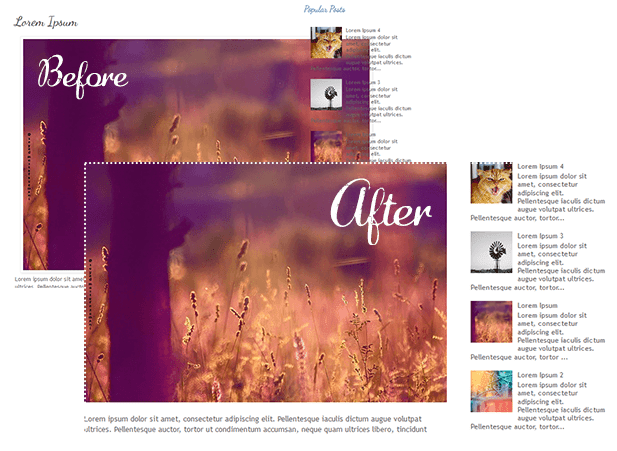
resize blogger images automatically
Blogger offers most of the tools you would need to add and resize Blogger images quick and easy. You can upload photos directly on the platform and even change the dimensions based on the type of content that you are attempting to produce.

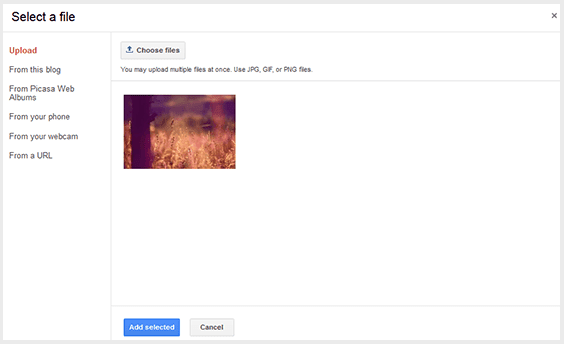
In order to do this, create a post and click on the small photo icon on the top toolbar next to the font style settings. A pop-up will show up on your screen asking you where you'd like to upload the image source. You have a choice between adding pictures from:
  • Your local computer
  • Previously uploaded images on the blog
  • Picasa Web Albums
  • An image URL
upload blogger image

Once you select the image that you want to use, you'll see four image sizes to choose from - small, medium, large, and x-large; it also gives you the option to determine the alignment. If you find that the four preset dimensions aren't providing the outcome you desire, there are easy ways to resize Blogger images to custom dimensions in order to fit your blog post area.

Step #1: Retain the Image Quality

If you know that you are going to need to resize Blogger images once you post them to your blog, make sure that you start with a photo larger than the 640px dimensions of the x-large option. It's easy to bring an image down in size, but if you try to make a small image bigger, you'll lose some of the quality. Just make sure that you watch out for the file size containing the image; the larger the file, the slower it will load on your website.

Photoshop is a powerful image editor that can help you to resize Blogger images or modify your images before you post, but it is also an expensive investment. There are also many other freeware image editors that can perform the simple task of resizing the photo. Determine what size you'd like the photo to display on the page and manually resize Blogger images to those dimensions; other users have found that 700px is a pretty flexible width size that works well on posts.

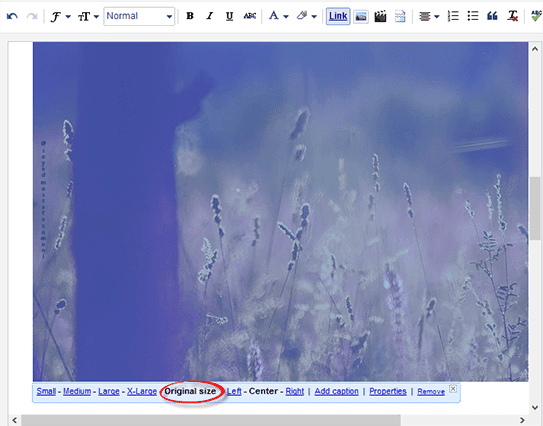
Once you've got your photo resized and added to your post, click on it and choose the 'Original size' option. If your photos are going to exceed the post editor, it probably means that they are larger than the body of your post, so let's fix that and make them fit exactly.

set image to original size

Step #2: Modify The Site's CSS

Next, you'll want to modify the CSS of your Blogger template to accommodate the adjustments. Don't worry; you won't need much coding experience to complete this task.

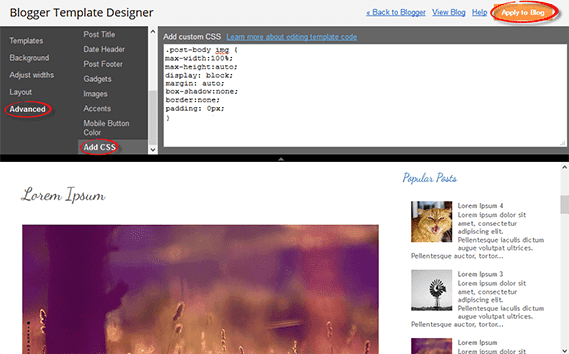
Open up the Blogger dashboard and go to 'Template' > 'Customize'. You'll see the option for 'Advanced', click on it and find your way to the 'Add CSS' tab... paste the following CSS code inside the empty box:
.post-body img {
max-width: 100%;
max-height: auto;
display: block;
margin: auto;
}
Adding the code to this section, automatically adds it between the <b:skin>....<b:skin> tags of your Template (Template > Edit HTML, above the ]]></b:skin> tag). So, no matter whether you add it above ]]></b:skin> or within the Add CSS box, the effect should be the same.

Remember that when you make changes to the CSS of the blog's Template, these changes will affect every post previously added, using the "Original size" dimension option.

To spruce up the post even more, add the last three lines shown in green below:
.post-body img {
max-width: 100%;
max-height: auto;
display: block;
margin: auto;
box-shadow: none;
border: none;
padding: 0px;
}

resize blogger pictures

This code will get rid of any borders and padding around the image and give it a much more natural look within the post. Hit the "Apply to Blog" button once you've finished adding it.

Note: This will only change the images set to Original size. To resize images with different sizes and apply this change on ALL the pictures added to your posts, add this CSS instead:
.post-body img {
width:100%;
height:100%;
display: block;
}
Please consider that, if you have posts with photos floating either on the right or left side of the content, they will automatically go full width.

Step #3: Create A Post

After making the adjustments to both file size and CSS, you may go back to the post editor and repeat the Step 1 to add an image. When you return to the screen that asks for size, click on the "Original size" option and confirm your choice. Your newly added image will then be displayed with the adjustments that you created, so that it fits nicely the width of the post area.

Monday, 21 July 2014

CustomizeMe Blogger Template (Helplogger Style)

CustomizeMe is a highly customizable Blogger template and SEO optimized to index your blog faster. It has been designed in a way that it can be easily customized according to your needs without having to touch the code of your template. All you need to do is to hit the "Customize" button and you are ready to start customizing your blog. Just try the template settings and be creative with the theme fonts, colors and backgrounds.

Some of the Template Features include:

  • Both Flat and Grid Design
  • Sticky/Fixed Left Navigation Menu Bar
  • Customized Popular Post
  • Recent Posts
  • Recent Comments
  • Page Numbering
  • Expandable Search Bar
  • Floating Social Bar Widget
  • Author Bio with Image
  • Related Posts with Thumbnails
  • 404 Error Page
  • Seo friendly

How to install the CustomizeMe Template

1) Sign in to your Blogger blog and head to "Template"
2) Backup the current template by clicking the "Backup / Restore" button > "Download full template"

blogger template backup

3) Download and open the CustomizeMe.xml file with a Notepad

open xml with notepad

4) Select all the code and to copy it to clipboard

select all code in notepad

5) Go again to Template and click the "Edit HTML" button

blogger template, edit html

6) Select all the code of your current template and delete it, then paste the code that you just copied earlier
7) Preview your blog and if everything is ok, hit the 'Save Template' button.

Please note that this method might delete some of your widgets, so if you want to keep any of them, just Browse for the CustomizeMe.xml file (step 2) and click on the "Upload" button (ignore the rest of the steps).

And that's it! Now you are ready to use the CustomizeMe Blogger template.

Adding menu items

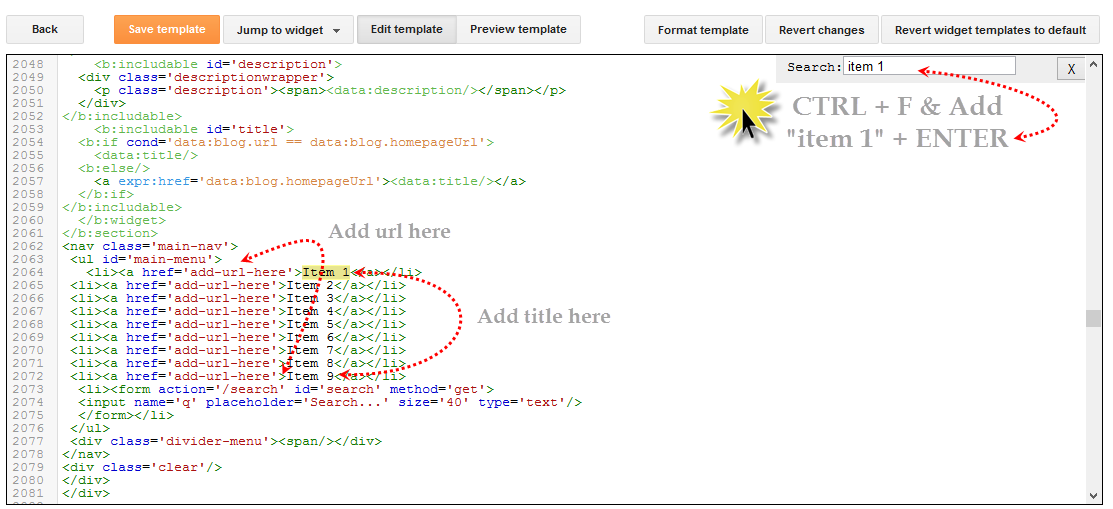
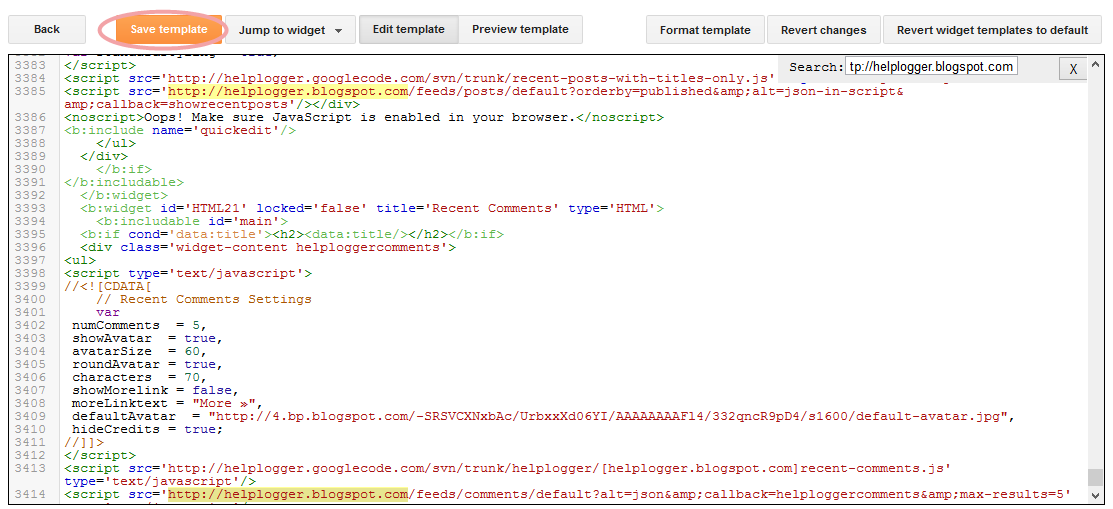
Go to Template > Edit HTML, click anywhere inside the code area and press the CTRL + F keys. Inside the search box, type "item 1" and hit Enter to find it - see the screenshot below

change blogger template html

Change Item 1, 2, 3... with your page titles and replace "add-url-here" text with your url. Finally, click the "Save template" button to save the changes.

Recent Posts & Comments Widgets

Search (CTRL + F) for the following address and replace it with your own (you will find it twice and you must change it in both places):
http://helplogger.blogspot.com

blogger template html

Please pay attention to not have two forward slashes at the end of your address, otherwise the scripts will not be able to read the blog's feeds. Save your template after you have made these changes.

Enabling "About the author" profile

Go to "Layout" and click the "Edit" link of the "Blog posts" element. In the pop-up window that appears, check the "Show Author Profile Below Post" option and hit Save.

blogger author profile

Changing colors and fonts in the CustomizeMe Template

Go to Template > click the "Customize" button. Here you can do lots of cool stuff, like change all the default fonts, text and background colors - basically, anything you want.

Some of the customizations that you can make:
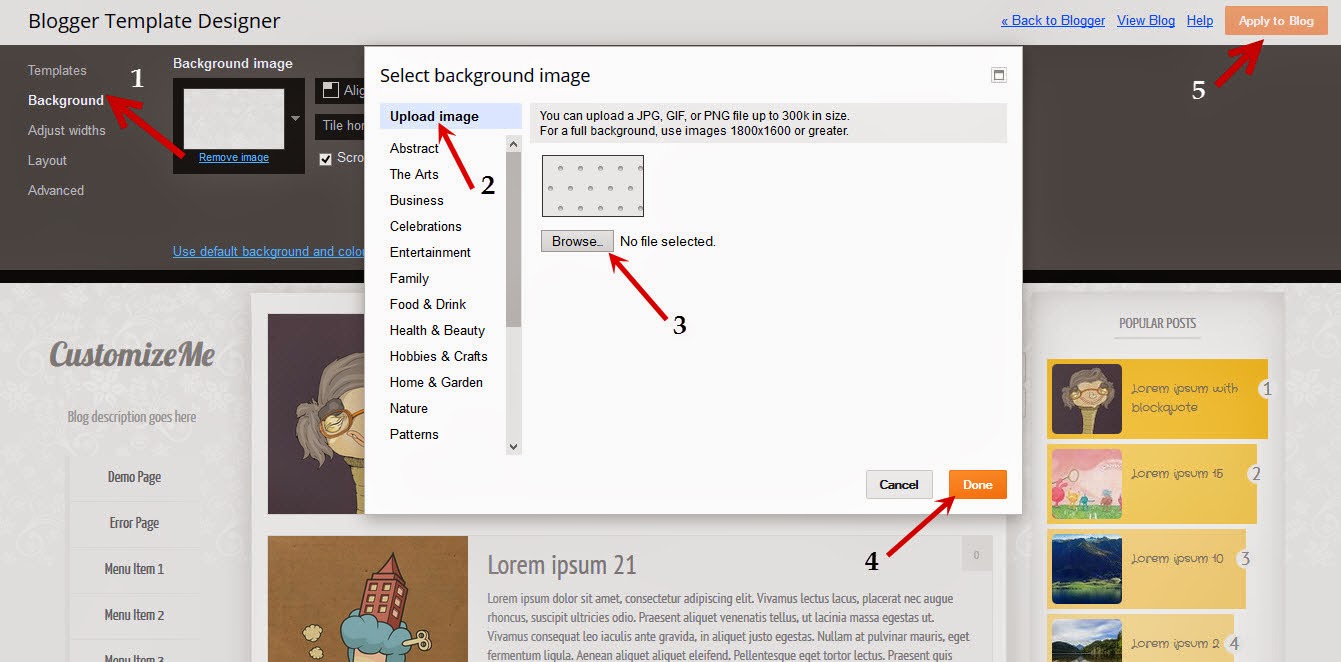
Add a Background image: Background > Upload Image > Browse and hit Done

blogger template designer, backgrounds

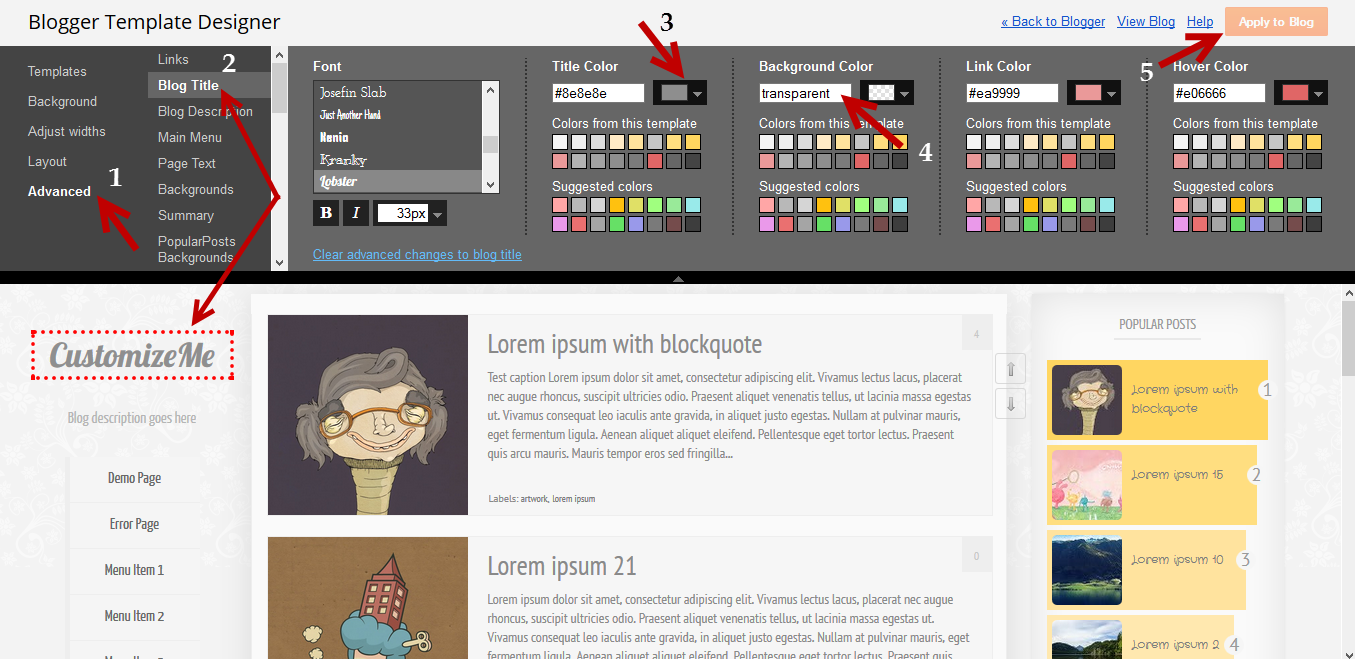
Change Fonts, Texts and Background Colors: go to Advanced > select the Element that you want to customize > select your favorite colors and fonts.

blogger advanced designer

To remove a color, just type "transparent" inside the text box as you can see in the above screenshot (4).

Once you're satisfied with the result, hit the "Apply to blog" button and view your blog. That's it!
Have fun customizing it ;)